


How to Change Your Apex Pro Actuation Point
Adjust the sensitivity of different keys on your Apex Pro.
Each OmniPoint Switch can be individually customized to your desired sensitivity. Here's how to do it:
Note: Adjustable actuation (sensitivity) is only available on the Apex Pro and Apex Pro TKL keyboards, which provide the ability to adjust between .4mm and 3.6mm travel distance to register a keypress.
Option 1: Adjust directly on the keyboard
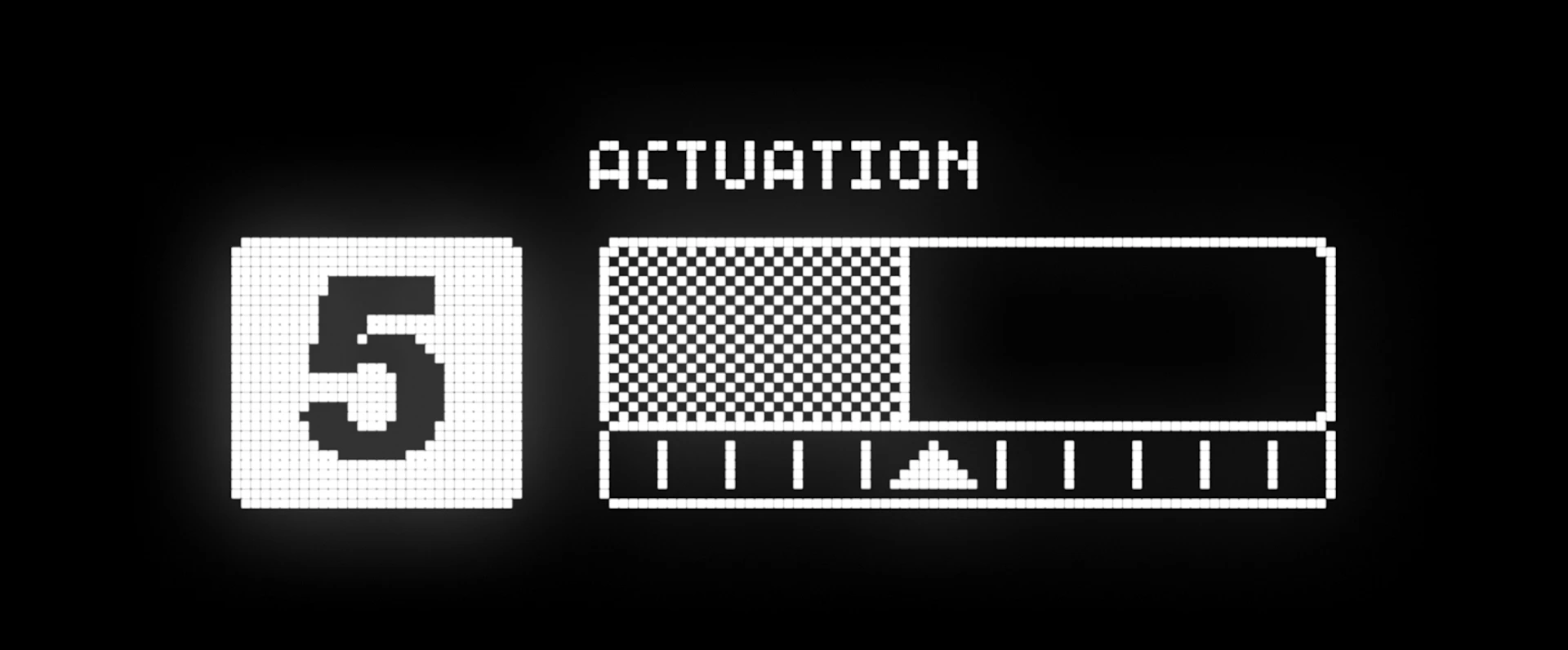
You can quickly and easily adjust your actuation point directly on the keyboard using the OLED screen, however this will adjust the sensitivity of all the OmniPoint keys together.
1 = the most sensititve, which means the key(s) will hardly need any pressure to register (.4mm)
10 = the least sensitive, which means the key(s) will need to be pressed down very deliberately to register (3.6mm)
If you want to further customize each key, you'll want to look at option 2 below.
Option 2: Adjust in SteelSeries Engine
Step 1: Make sure you have SteelSeries Engine
Engine is the key to any customization of your SteelSeries gear.
The latest version can always be found on the SteelSeries Engine download page.
Step 2: Select your keyboard
When you open Engine, you'll see a list of all of your customizable SteelSeries gear. Double click on your Apex Pro or Apex Pro TKL.
Step 3: Click "Actuation"
You can find this along the top center of the keyboard customization, between "key bindings" and "illumination".
Step 4: Choose which keys to customize
You can select all of the OmniPoint keys, a group of keys, or even an individual key (like the space bar). Use the shift key to individually click keys to highlight together.