



Choose Audio Presets Faster with New Sonar Feature
Your favorite presets are easier to select than ever before.
We're updating the user interface in Sonar to be even more convenient than before — now all your favorite presets figure at the main screen, so you can instantly see which ones are applied!
Sonar, part of the free SteelSeries GG software, serves to be your all-in-one command center for game audio. Conveniently manage and enhance the audio across all your channels. A big part of how that's done is via Parametric EQ presets — ready-to-use audio configurations that improve the sound you hear in your favorite games, whether for deeper immersion or useful audio cues.
We just pushed an update to Sonar that improves this functionality by displaying the name of active presets right in the device Mixer. It's easier than ever to see what presets are active across every device you have — plus, all your favorite presets become even more accessible.
Manage all presets from the Mixer window in Sonar
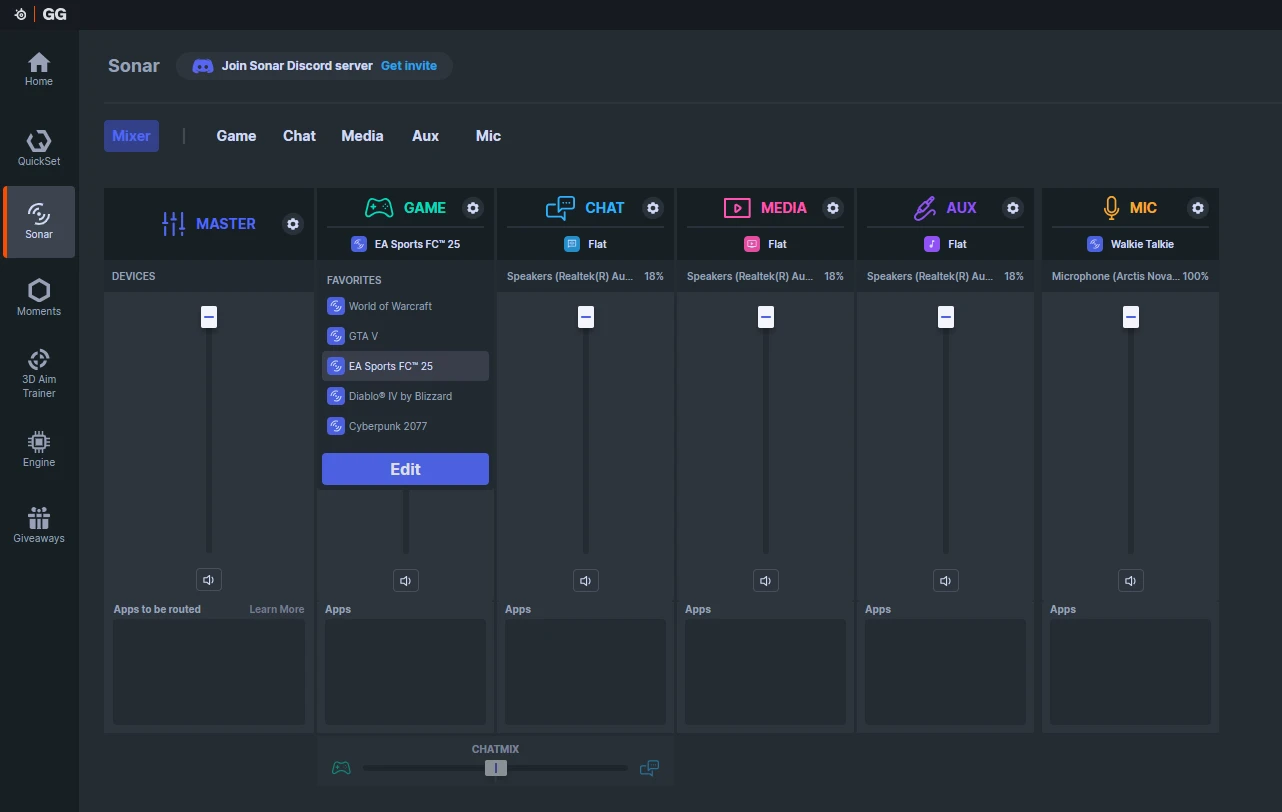
As you can see under each column, each channel now has the active preset listed right under its name. If you click on it, you'll be able to see a list of your favorite presets.
If you don't have any favorite presets, an Edit button will be visible. Click it to set a few.
After you have marked a few presets, they will then show up in the list in the appropriate channel. As pictured above, there are five presets for games that one might commonly play. Switching between them is just two simple clicks away, and all you need to do is glance at Sonar to see which one you have active. When going to a different game, simply switch to the appropriate preset. You can also favorite your custom-made presets there.
Note that you can manage all the channels easily now; sometimes I switch to the Walkie Talkie preset on the Mic to entertain my friends. You should try it!
Remember, if there are any channels you don't want to show up at all because you don't use them, you can disable them.
Set your Favorite Presets
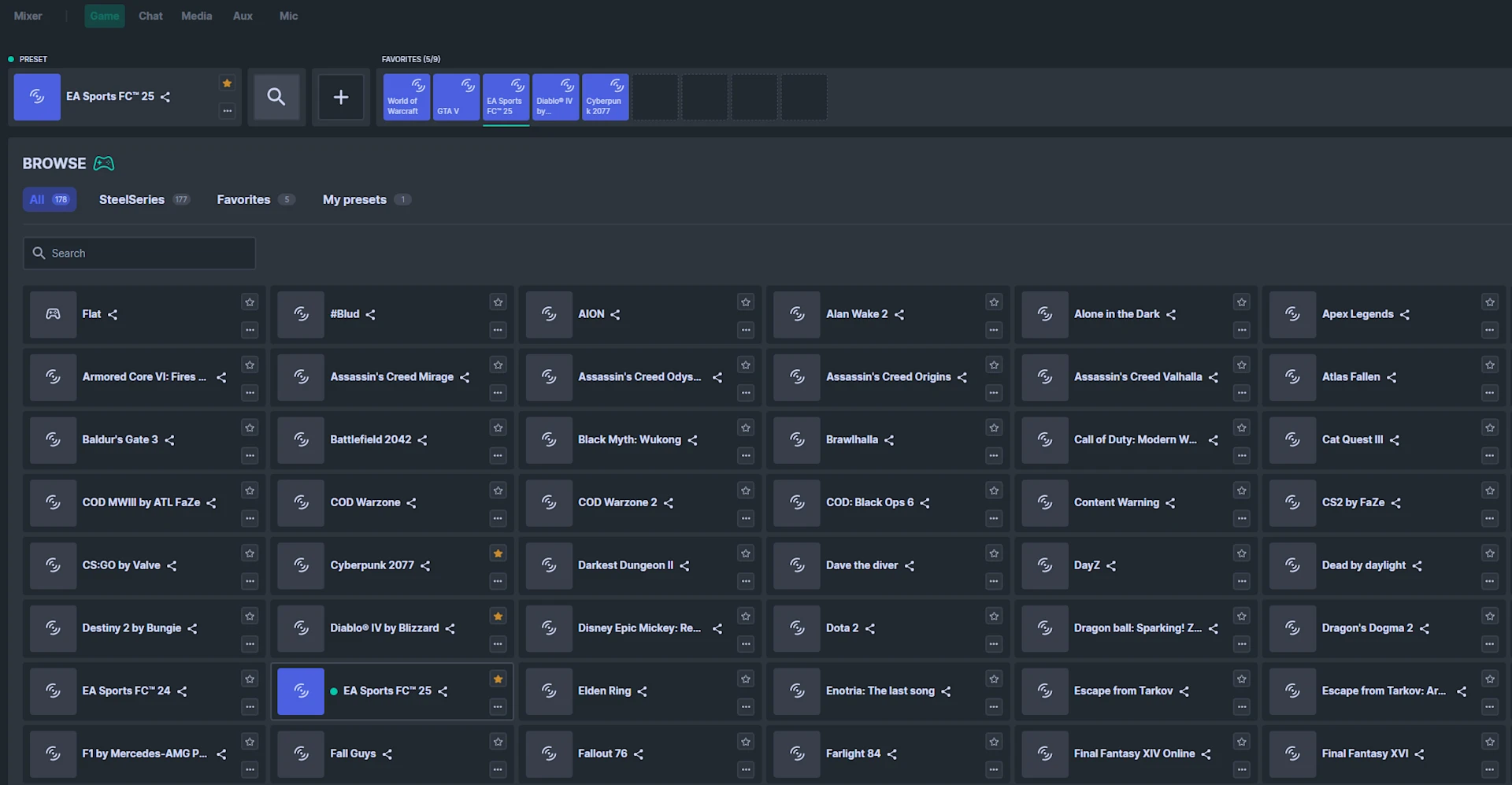
If you haven't done it yet, you need to first setup your favorite Sonar presets, which is also a new feature in Sonar.
It's quite easy. Enter it either through the Edit window mentioned above, or go to the appropriate channel (the list of the channels in white, above the columns — Game Chat Media Aux Mic).
You'll see the settings for that audio channel in more detail, including a graphical representation of your current EQ preset. Click on the Browse/Search icon to find a preset, and then on the little star next to them to mark as your favorite. You can also make a custom one your favorite.
For more details on this, refer to our guide to favorite Sonar presets.
If you've ever shied away from using presets, now's the time to start using them! They're much more easily accessible than before. Make sure to update to the newest version of GG and start using hundreds of available presets for you to drastically upgrade your sound experience. Download SteelSeries GG software now to get started.
Also check this out:
Wordsmith at SteelSeries. Enthusiastic about Dota 2 and fighting games. A cat dad.