



Capture High Scores in 3D Aim Trainer with Moments
Clip your best score and share it with ease!
Topped your best score yet on 3D Aim Trainer? Why not show it off! Upload clips easily with Moments, now with auto-clipping, and show everyone why you're the best.
FPS enthusiasts, this post is for you. 3D Aim Trainer is a fantastic way to improve your aim, and we just integrated Moments into it, letting you automatically capture clips of your high scores, and not only. Capture clips for bragging rights, sharing on social media, and for self-study, which is one of the best ways to improve.
Simply have Moments enabled while playing 3D Aim Trainer, launching it from the SteelSeries GG client or from Steam.
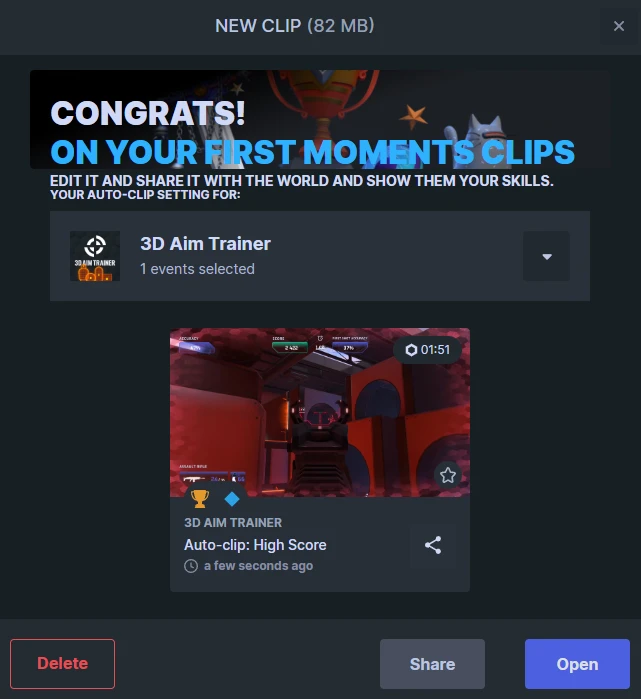
When you successfully capture a clip, your post-game summary (after exiting the game) should look like this:
Pros of capturing 3D Aim Trainer clips
There are several advantages to this integration of Moments with 3D Aim Trainer. Here's a couple of reasons why you should use it:
Focus on aiming while screen capture is automated for you
Improve your aiming skills much faster by going over your footage
Share and upload easily on social media or with friends to showcase your skill
Video capture and aim trainer in one app without slowing down your PC performance
This is a hands-free, time-saving measure Whether it's nailing a high score, hitting difficult targets, or improving your reaction time, the auto-clip feature would capture those key moments, allowing you to review or share your progress without the need to manually record everything. This makes it a very efficient tool for both improvement and sharing with others.
Adjust clip capture settings
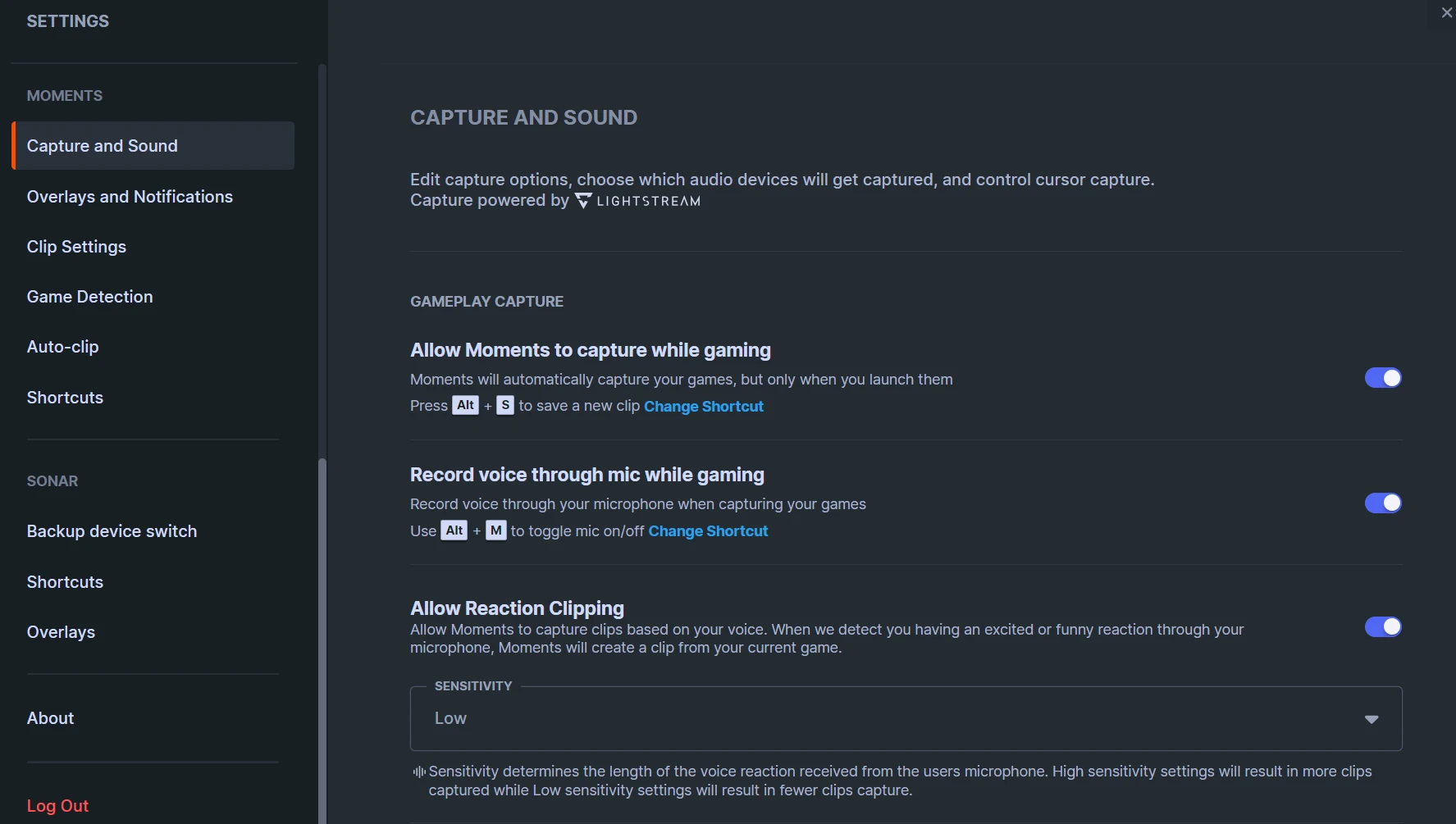
In GG, click on the Settings cogwheel in the lower left of the screen to enter the menu. Scroll down on the left panel to see the Moments section.
In the Capture and Sound menu, make sure Moments is allowed to capture clips while gaming. Scroll below to confirm which audio devices are used for the clips (you can match them to the ones you configured in Sonar) to capture audio, chat, and your microphone input. While it may not be necessary for 3D Aim Trainer, this is helpful for other games.
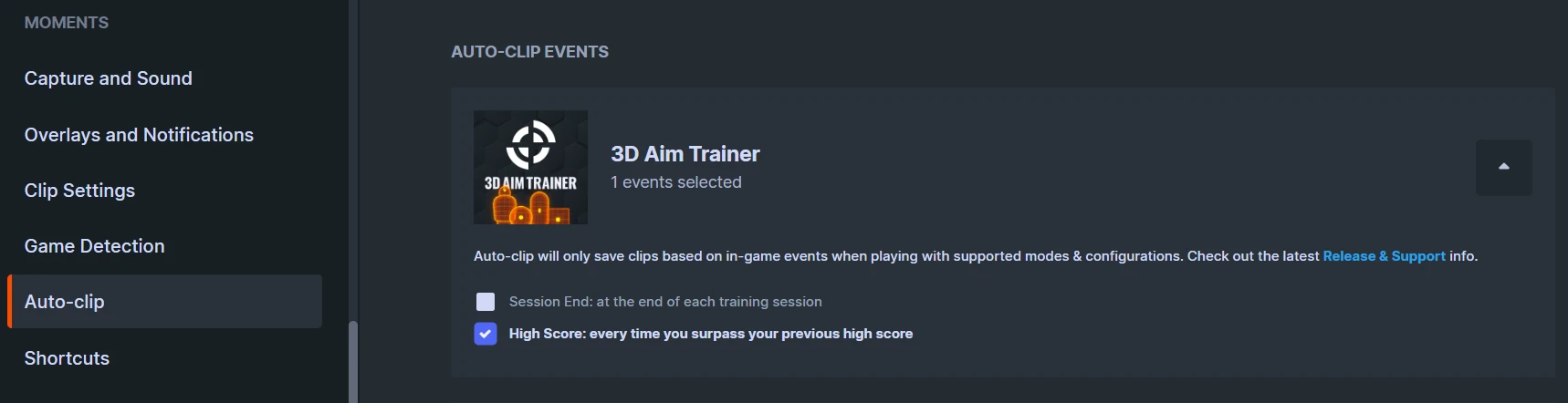
Then keep scrolling in the left panel to see the auto-clipping settings. You'll see 3D Aim Trainer there. By default, it will save a clip automatically each time you have a high score. You can also enable a setting to save a clip at the end of every training session: good if you're forgetful yet serious about your training.
You will have a summary pop up after exiting 3D Aim Trainer that shows which clips were captured, and you can always view or delete them by entering the Moments section of GG.
How to improve your FPS aim
Haven't heard of 3D Aim Trainer before? If you want to hit headshots like the pros, this is the software you need. Integrated into SteelSeries GG and available on Steam, this free aim training game features top-level analytics to help you improve over time.
You can sync your aim and settings to over 12 games, letting you play just like you would in your favorite title, whether that's Call of Duty, Overwatch, Fortnite, Apex Legends, PUBG, or more. With tons of drills, improve your flicking, tracking, and target switching.
Also check this out:
Wordsmith at SteelSeries. Enthusiastic about Dota 2 and fighting games. A cat dad.