



Arctis Nova Elite User Guide — Tips & Tricks
All the cool controls and shortcuts for your Arctis Nova Elite.
There are tons of convenient ways to deliver that sweet hi-res audio straight to your ears, and we're packing this guide with useful shortcuts.
The next evolution of SteelSeries headset is here with Arctis Nova Elite. Whether you're a lucky owner of the incredibly beautiful Sage & Gold or the formidable Obsidian edition, or you're looking into nabbing one, this tips & tricks guide might just be the inspiration you need.
Controlling all aspects of your audio is more convenient than ever, since Elite features a multitude of ways to do so: you can use the useful on-ear controls right on the headset; the GameHub serves as an informative companion and battery charger in one; and finally the mobile Arctis app bridges everything with useful controls and handy EQ presets for both 2.4GHz and Bluetooth audio.
Let's break down some useful tips on using your shiny new Arctis Nova Elite.
Arctis Nova Elite Instruction Manual
In case you've lost it or need a quick digital reference, the Arctis Nova Elite Product Information Guide contains a ton of useful setup, control, and usage explanations.
For other issues, refer to our Support Page or contact our Support team.
Arctis Nova Elite Headset Controls
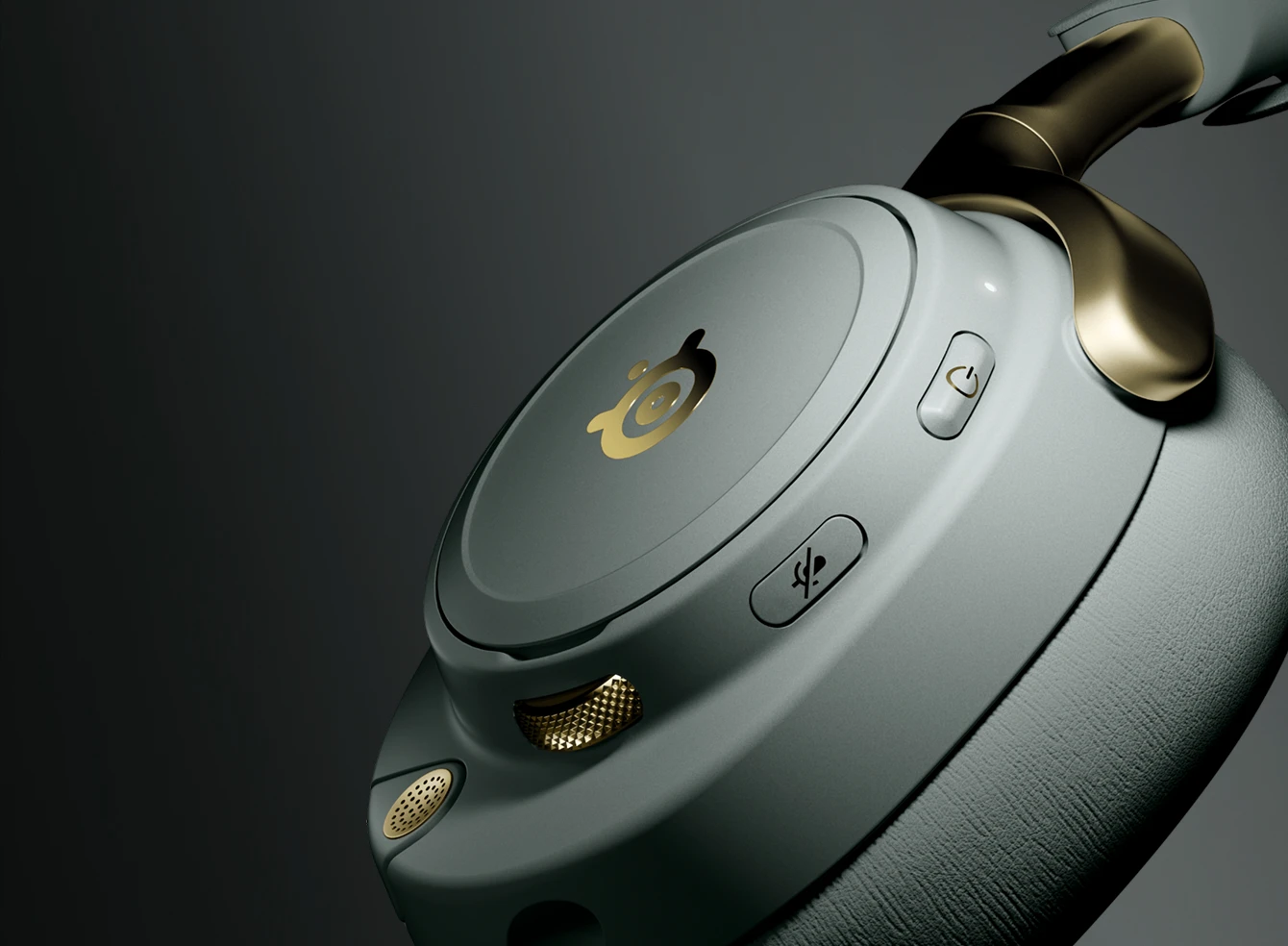
Power Button: Hold it for 2 seconds to turn the headset on or off. Press the button once to toggle ANC on or off. Press the button twice to toggle Transparency Mode on or off.
Microphone Mute Button: simply silences your microphone.
Control/Volume Wheel: Spin the metal wheel to adjust the volume output of Arctis Nova Elite. However, there's more to it. Press and release the Wheel to toggle between Volume, SourceMix, and ChatMix.
SourceMix will adjust the balance between two USB sources (between USB 1 and 2, or USB 1 and 3), while ChatMix does that but for your game and voice chat audio.
Pressing and holding the Wheel will bring up the main menu on the GameHub, where a host of useful settings shows up.
You can use the Arctis Nova Elite headset controls to navigate your GameHub! Pressing and releasing the Control Wheel selects options, while the Power Button acts as a "go back" button. Scroll by spinning the wheel.
Arctis Nova Elite GameHub Tips and Controls
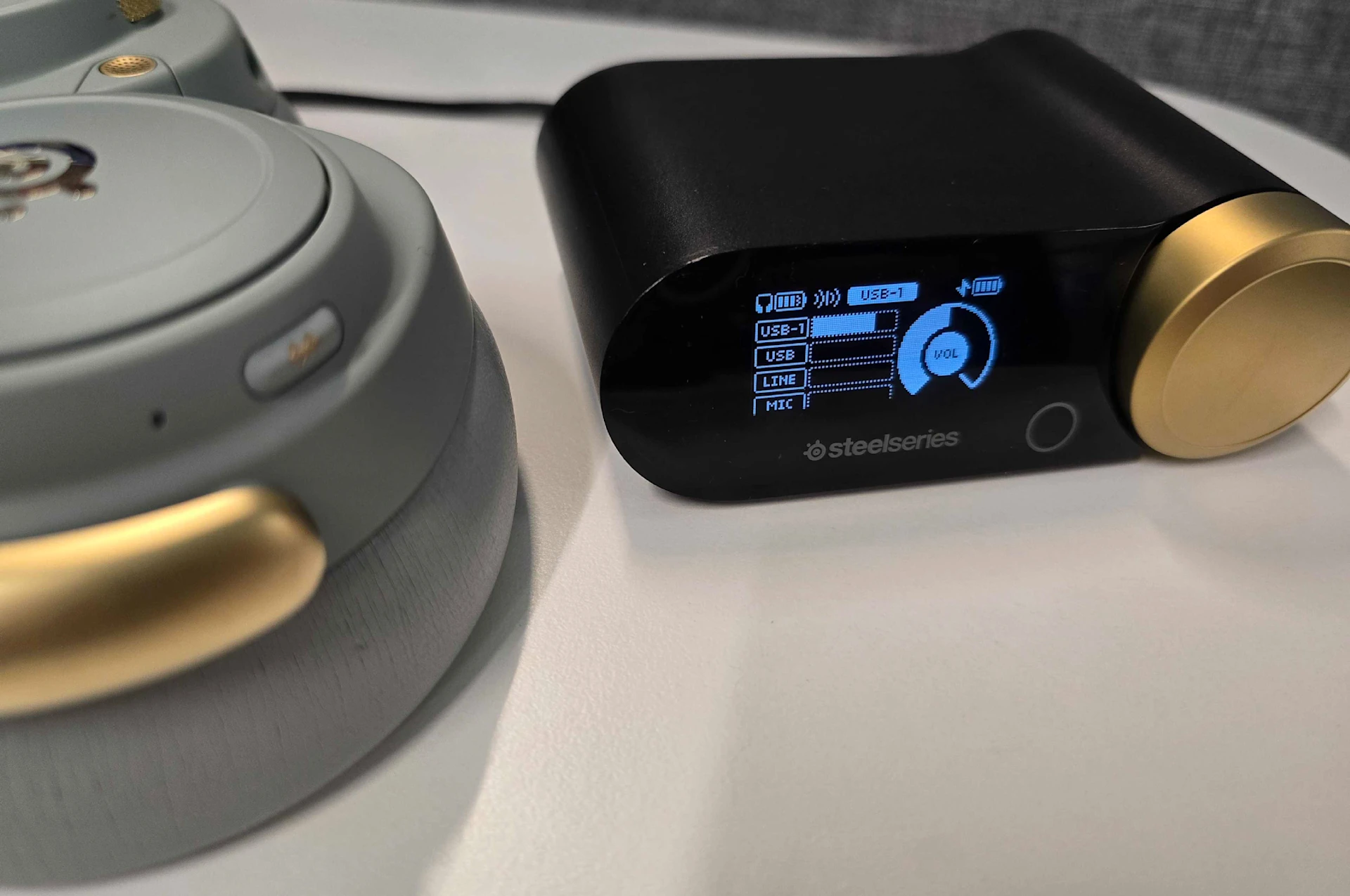
The GameHub features a useful OLED screen that displays all kinds of information about your headset; it also has controls that you can use for some more in-depth options.
The big Control wheel works as a volume dial and as an option selector; pressing it will generally confirm your selection. The smaller circle to its lower left (Secondary Button) works as a back button.
Note that when powered on, the GameHub displays a few things: the Volume indicator, the charge levels of both batteries (left being the headset one, while the right one for the battery charging inside the GameHub), and the audio levels for each source.
You can change the audio levels display for something else; the Home Screen can show you currently active presets for 2.4GHz and Bluetooth modes as well as the mic. You can also display Stereo (left and right) audio bars instead. Toggle between these Home Screen displays by briefly holding the Secondary Button.
Press the Control Wheel briefly: enter the options menu. Adjust a variety of settings, such as
USB Input
Audio Options: Equalizer, Gain, Noise Control, Microphone
Noise Control includes ANC and Transparency Mode, and the levels of each
Wireless: re-pairing 2.4GHz in case it's needed and Bluetooth settings
Line Out: output to speakers or stream
System Settings: OLED brightness, sounds, Auto Off timing, Tutorial, and a System Reset to default
Arctis Companion App: Mobile Controls for Arctis Nova Elite
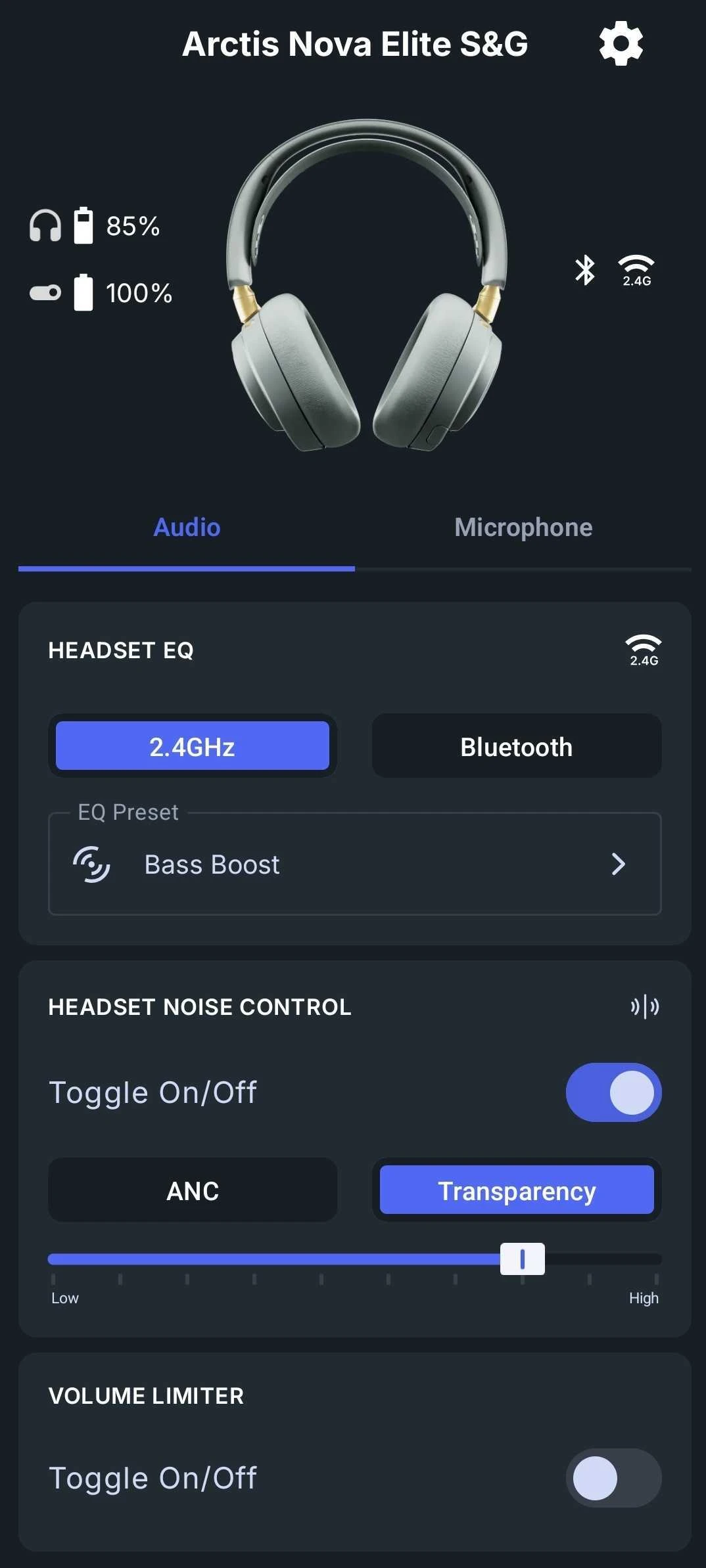
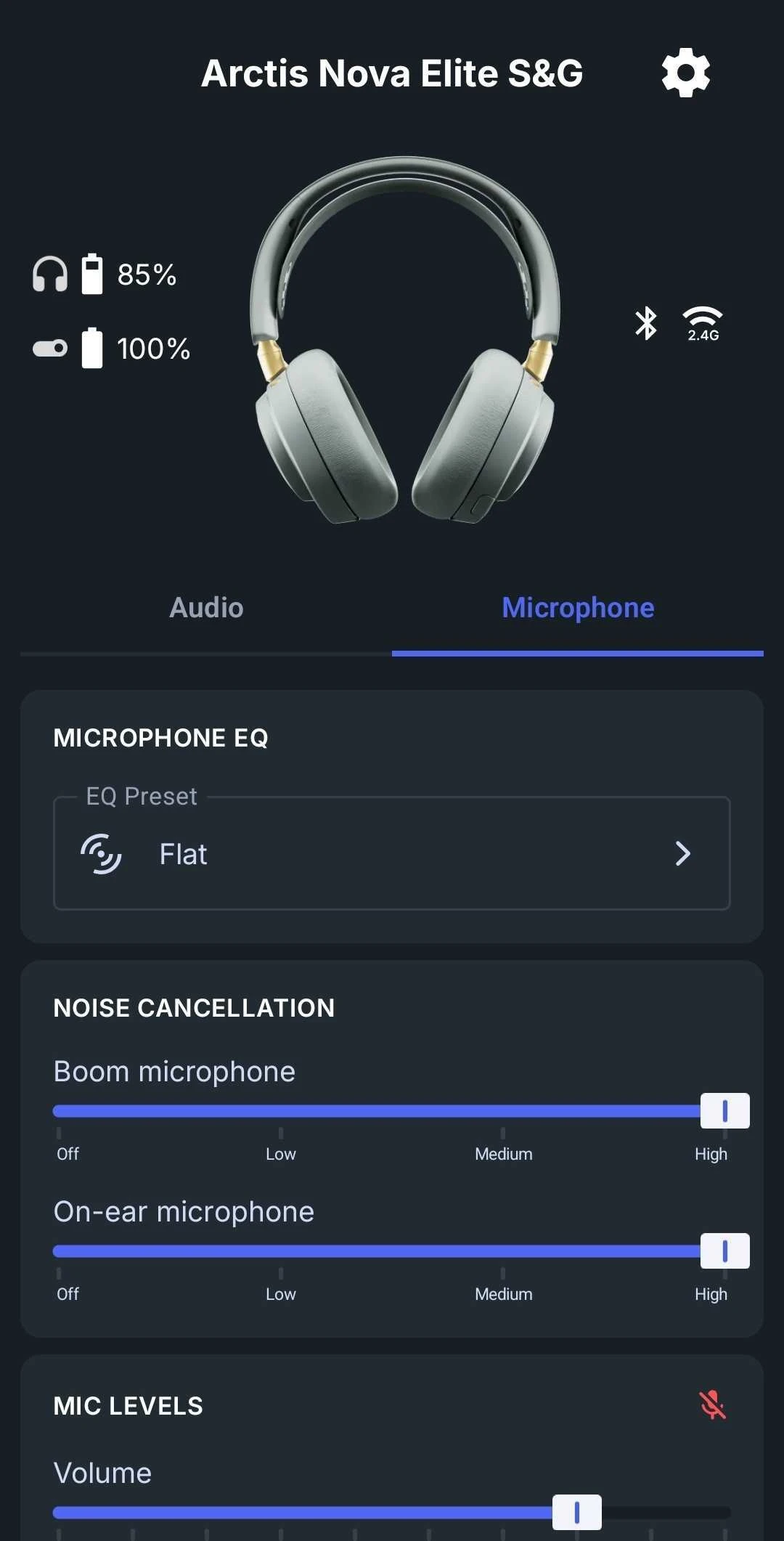
Arctis Nova Elite is compatible with the Arctis Companion App, available for both iOS and Android phones. This means that adjusting all these settings is easily done anywhere with a mobile interface. Not only this could be your preferred way to modify various options, but this is also the best way to quickly adapt Arctis Nova Elite to whatever you're playing on console.
After all, we have a growing library of over 200 EQ audio presets for specific games.
Once you Bluetooth connect your Arctis Nova Elite to your cellular device, open the app. Note that the battery information is displayed at the top to keep you informed. THe two tabs split the EQ settings between Audio and Microphone.
You will probably mostly be looking at the Audio tab. Please pay special attention to the fact that you can apply separate EQ profiles to both the 2.4GHz and Bluetooth connections, and they are always saved. With 2.4GHz being the preferred gaming connection, let that choice enhance your experience, while Bluetooth is typically used with music or calls.
You can also adjust the ANC (Active Noise Cancellation) to your liking. You can turn it off entirely, or toggle between Transparency Mode and ANC, as well as adjust their intensity.
You can also adjust the EQ for the Microphone by switching the tab. Experiment with the Microphone EQ (the Walkie-Talkie is really fun in gaming). You will find important Noise Cancellation and Mic Levels options there to adjust the sound to your preferred style of speaking and circumstance.
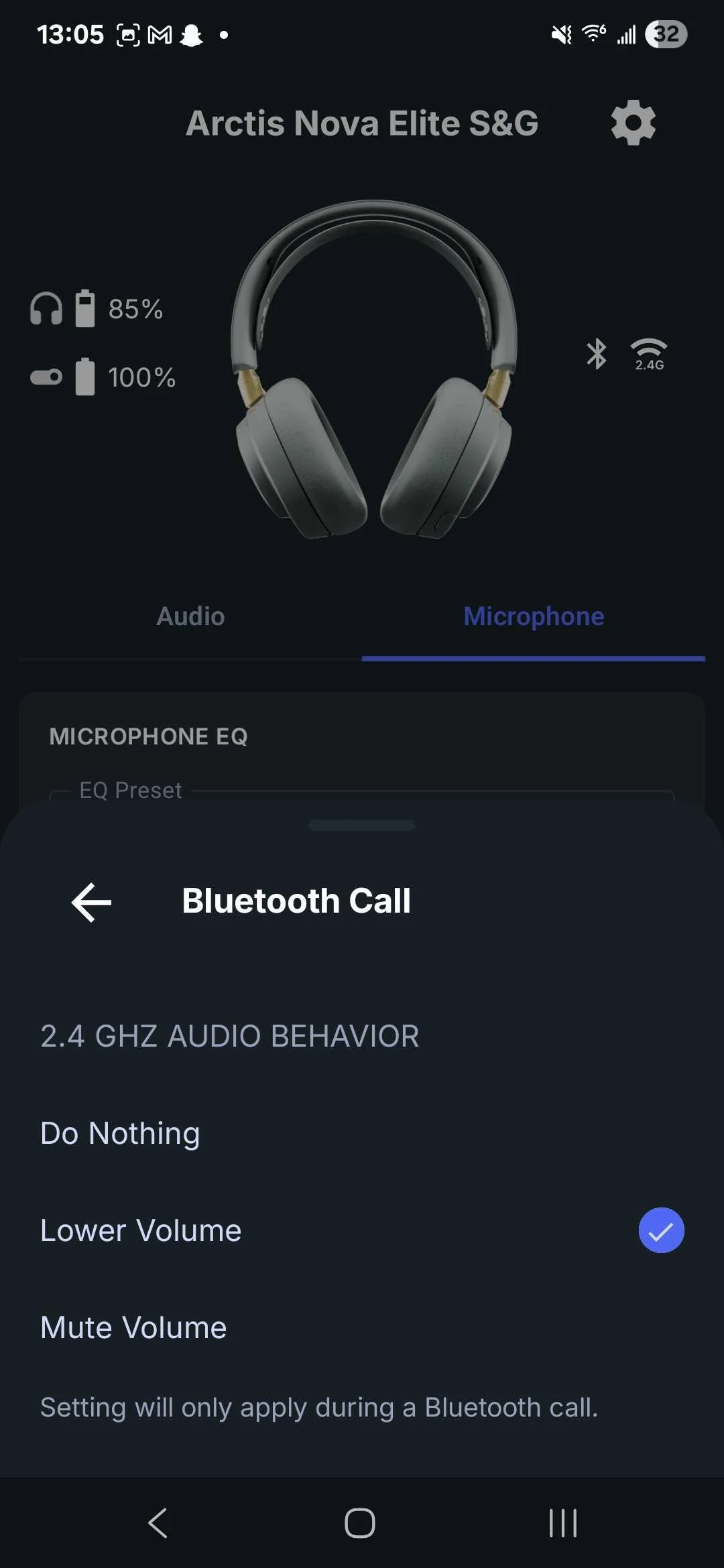
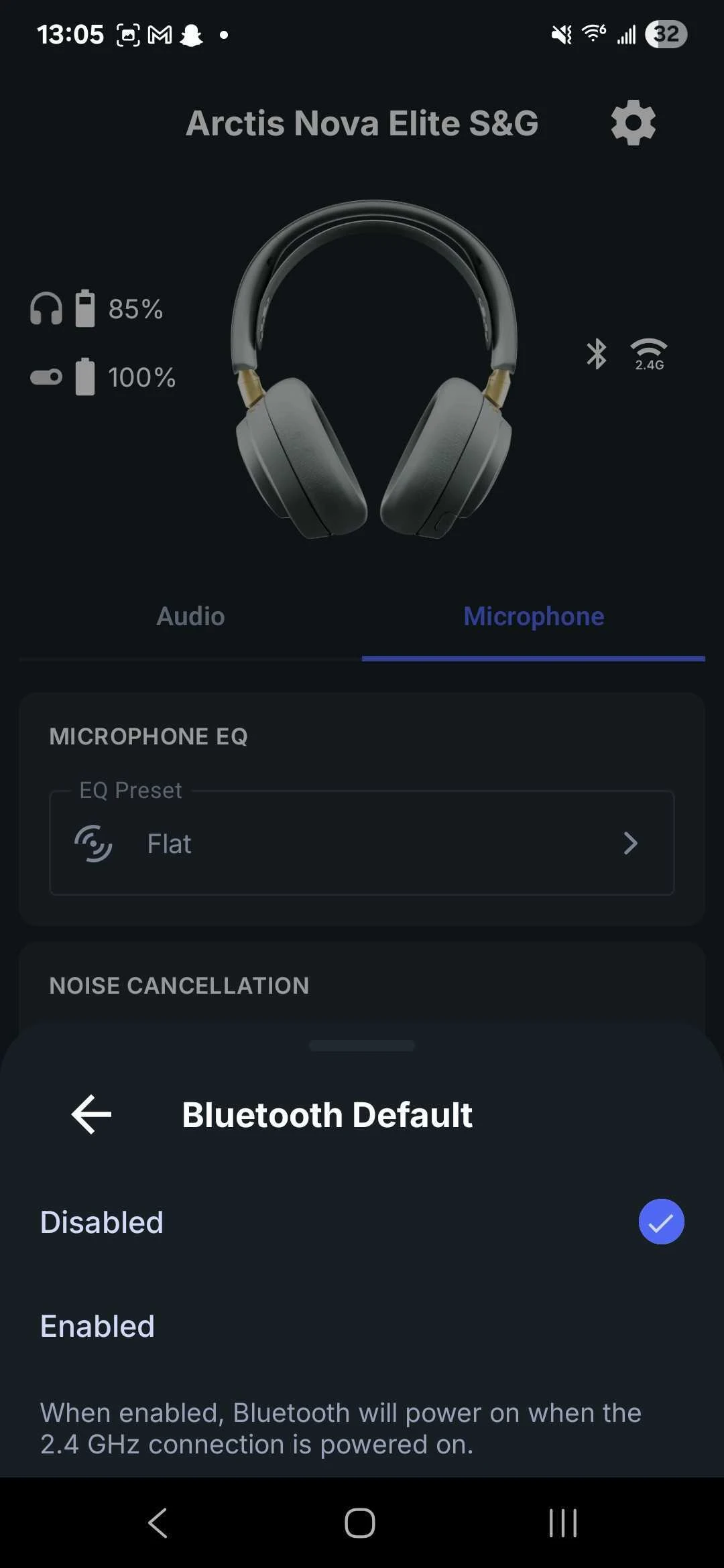
Note that there are a few more useful options when pressing on the Cogwheel icon on the upper right. There you can adjust things like Bluetooth call behavior, and whether you want Bluetooth to turn on by default when the 2.4GHz connection is powered on. Perfect when you want to be on the call with someone while gaming, or controlling music at the same time.
Bluetooth Controls with Arctis Nova Elite
Hold the Bluetooth button on the headset for 2 seconds to turn it on. If you need to pair your Arctis Nova Elite with your phone, hold the Bluetooth button for 4 seconds. Ensure your device is in "Scan" mode and pair it with your Elite.
You can use the Bluetooth button to control media and calls. If you get a call while gaming or otherwise connected via 2.4GHz, you will hear a notification in your headset.
Bluetooth controls:
Answer/End Voice Call: Single press the Bluetooth button
Play/Pause Music: Single press the Bluetooth button
Skip Track: Double press the Bluetooth button
Previous Track: Triple press the Bluetooth button
We've covered just about every method of controlling various aspects of your audio experience with Arctis Nova Elite. If you aren't a lucky owner of this incredible headset yet, order one now:
Arctis Nova Elite FAQ & Troubleshooting
I'm having trouble pairing the headset with the app.
Make sure both the Arctis Companion app is updated to the latest version, and that the Arctis Nova Elite's firmware is also updated. You can update the headset's firmware by using the free SteelSeries GG software on PC or Mac.
Ensure the headset is on and is connected via Bluetooth to your phone. Follow our video guide for more visual tips (the process is the same for this headset).
I've messed up some settings and not sure what to do. How do I reset Arctis Nova Elite settings?
Yes! In the event that you need to reset settings, you can do so via the GameHub. Press the Control wheel briefly to access the menu on the GameHub. Scroll to the right until you see System Settings, and press the Control wheel again.
Scroll again to the right until you see "System Reset" and then select it, and select Yes, then confirm your choice.
How do I enable hi-res audio on the Arctis Nova Elite?
Your Arctis Nova Elite supports hi-res audio, letting you enjoy every detail of your favorite games, music, and movies. By enabling Hi-Res mode, you’ll get richer soundscapes, clearer footsteps, and more immersive cinematic moments.
This is most likely already on, but you can double-check settings in Windows to make sure that it is outputting hi-res audio. Right click on the Volume indicator on the lower right of your screen and open up Sound Settings. Click on the right arrow of your device (either Arctis Nova Elite or the SteelSeries Sonar - Gaming virtual device).
This takes you do a Properties screen. Look below to see Output settings, and adjust the Format dropdown to 24-bit, 96000 Hz.
If you don’t see the 24-bit / 96 kHz option in your settings:
Ensure your audio drivers are up to date.
Disable any other conflicting audio devices that might be controlling the output.
If you’re still having trouble, try restarting your PC and checking the sound settings again.
Wordsmith at SteelSeries. Enthusiastic about Dota 2 and fighting games. A cat dad.