


How to Balance Audio Like a Pro Using Sonar
Gaming Audio Balance Guide | SteelSeries
Master audio balance for gaming, chat, and streaming with SteelSeries Sonar. Hear every detail and keep your mix pro-level.
Ever been mid-match and missed an enemy because your teammate’s “hilarious” story drowned out their footsteps? Or maybe your stream viewers complain they can’t hear you over the game’s music? It’s not just annoying — it’s lost matches, frustrated friends, and viewers hitting the back button.
Audio balance is the secret sauce that separates the best from the rest. It’s more than just turning the volume up or down. You’re shaping your mix so every sound is exactly where it needs to be.
With SteelSeries Sonar, you can fine-tune your game, chat, and stream audio independently, so you’ll never have to choose between hearing your squad, catching key in-game cues, or keeping your audience happy.
Why Audio Balance Matters for Gamers, Streamers, and Chatters
No matter how or what you game, audio balance is an important part of your experience. Sure, a regular stock system and settings allow you to hear things, but you want to hear the right sounds at the right time.
When audio is well-balanced, you can:
React faster in-game — Subtle cues like footsteps, reload sounds, or an approaching vehicle aren’t drowned out by background music or teammate chatter.
Clear up communication — Your voice comes through crisp to your teammates, and theirs doesn’t get lost in the gunfire and cinematic cutscenes of it all.
Keep your stream engaging — If you’re in the streaming game, balanced audio means viewers hear the perfect mix of game audio and your commentary without them having to crank up their volume
The point is, don’t rely on default settings and take control of your audience mixing people!
The SteelSeries Sonar Advantage
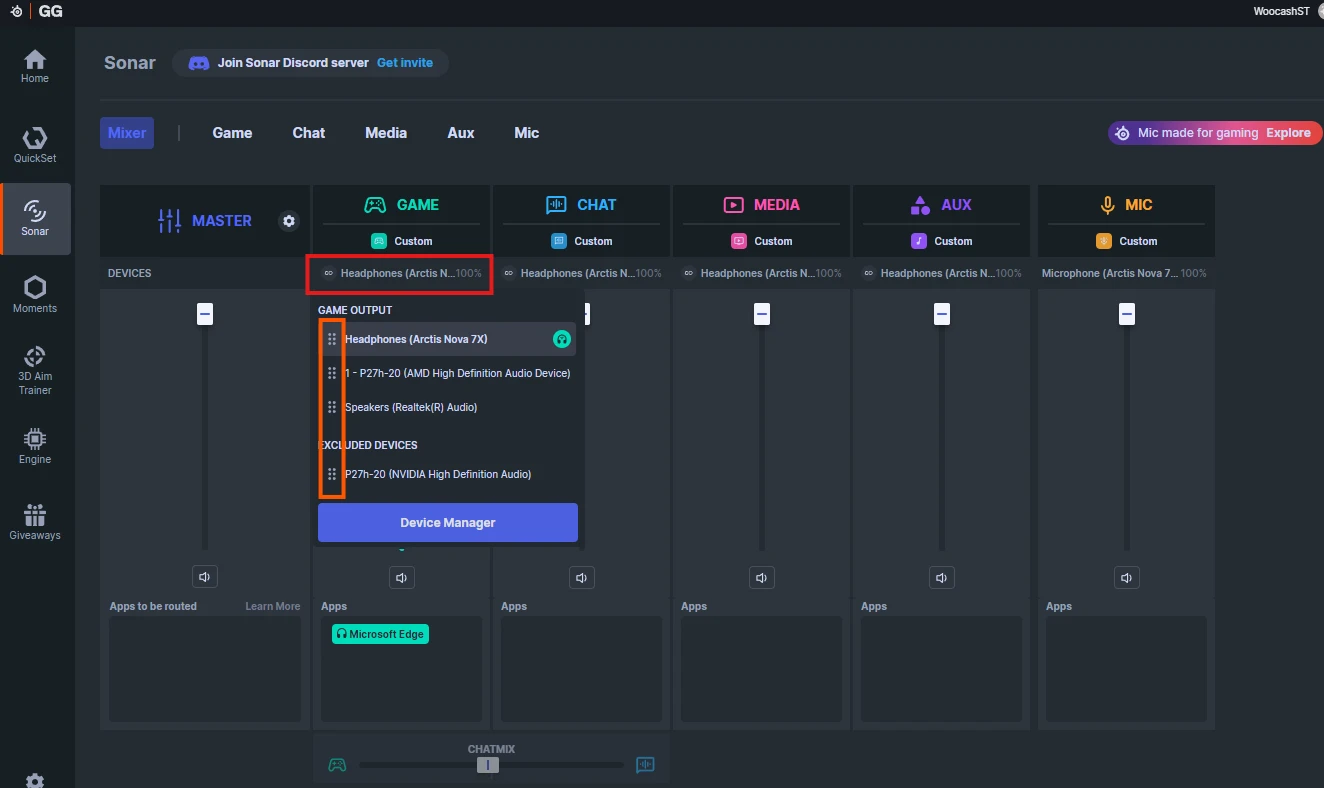
Most platforms give you some audio control. Maybe a simple game/chat slider or basic EQ. But Sonar takes it to a pro level. Sonar is built into SteelSeries GG and provides a powerful audio software suite that enables you to customize, separate, and fine-tune every sound source in your setup.
With Sonar, you can:
Independently control game, chat, and media volumes — No more compromising between hearing your team and catching subtle in-game cues.
Apply dedicated EQ profiles for each source — Boost footsteps in your game while keeping chat voices warm and natural.
Use spatial audio modes for competitive precision or cinematic immersion.
Save and switch profiles instantly for different games, streaming setups, or voice apps.
Because Sonar works at the software level, it's compatible with most gaming headsets, microphones, and streaming gear—no special hardware required (although a SteelSeries headset pairs perfectly, just saying). All this is to say Sonar brings any setup a professional-grade audio balance, without needing extra clutter and tech.
How to Balance Game, Chat, and Stream Audio with Sonar

Getting a better audio mic isn’t complicated. Sonar makes it easy to separate, adjust, and perfect your sound in just a few minutes.
1. Download & Install Sonar
Get SteelSeries GG and enable Sonar in the settings.
Make sure your headset, mic, and any external audio devices are connected.
2. Assign Your Audio Sources
In Sonar, set Game, Chat, and Media channels.
Route your game audio to the Game channel, Discord/voice app to Chat, and music or alerts to Media.
3. Adjust the Game & Chat Mix
Use the sliders to raise or lower each channel until you hit your sweet spot.
Example: Lower game volume slightly during a raid so your team’s calls stay clear.
4. Fine-Tune with EQ
Open each channel’s EQ and choose a preset (like Competitive Footsteps) or make your own.
Boost critical frequencies for clarity — e.g., 2–4 kHz for voices, 50–200 Hz for bass impact.
5. Save Your Profiles
Create profiles for different scenarios: competitive matches, casual play, or streaming.
Switch instantly between them without having to redo your settings each time.
Pro Tips for Perfect Audio Balance
We taught you the basics so far, but here’s how you can tweak your sound even more to take the mix from “good enough” to “perfect”.
1. Separate Your Channels Like a Studio Engineer
Route game, chat, and music/media to different Sonar channels. This gives you independent control so you can adjust one without affecting the others mid-match.
2. Use Presets as a Starting Point, Not the Final Word
Sonar’s presets (like Competitive Footsteps or Immersive Movie) are great, but don’t be afraid to tweak the EQ to fit your ears and the game’s audio design.
3. Create Profiles for Different Scenarios
Ranked/Competitive: Lower music, boost mid-range for footsteps and voices.
Casual/Story Mode: Bring music up, balance dialogue with environmental sounds.
Streaming: Prioritize clear mic audio for viewers while keeping game audio immersive.
4. Monitor Your Output While Live If you’re streaming, do a quick audio check with a friend or in a private recording. What sounds balanced in your headset may be too loud or quiet for your audience.
5. Keep an Eye on Your dB Levels
Aim for game audio to sit slightly below your chat volume in competitive play, and keep your total mix under safe listening limits to avoid fatigue.
What is the Best Audio Mode for Gaming?

The “best” audio mode depends on what you’re playing and how you’re playing it — but in most cases, you’ll want to choose a mode that gives you the clearest positional awareness without sacrificing overall immersion.
Competitive Shooters (e.g., CS2, Valorant, Apex Legends)
Each of those games has a specially tuned preset; just select the right game from the dropdown
These are made with audio engineers or developers; the goal is to tune up the audio cues you need for a positional advantage, such as footsteps, bomb plantings, consumable usage, etc.
Stereo can give more precise left/right positioning, while spatial modes like Sonar’s Competitive Footsteps preset enhance directional cues and mid-high frequencies so you never miss an enemy sneaking up.
Open-World & Story-Driven Games (e.g., The Witcher 3, Cyberpunk 2077)
Immersive spatial audio is your friend here.
These also have presets; rather than a competitive aspect, these will focus on the immersion and bring out the depth of the soundtrack and special effects, like sounds of explosions or sword clashes
Wide soundstage modes help you feel like you’re inside the environment, letting ambient sounds and orchestral scores shine.
Streaming & Variety Gaming
Use a balanced mix — keep game effects crisp but slightly under your voice for viewers.
Sonar’s per-channel control means you can keep chat clear while letting the game’s atmosphere come through.
Pro Tip: With Sonar, you can save both a competitive and an immersive profile, switching between them instantly depending on the game you’re launching.
How Many dB is Good for Gaming?
There’s no one-size-fits-all number, but there are safe and effective ranges to aim for.
Safe Listening: Keep your overall mix under 85 dB to protect your hearing during long sessions.
Competitive Play: Set chat volume a few dB louder than your game audio so voices cut through without distortion (e.g., Chat at ~75 dB, Game at ~70 dB).
Streaming: Match your mic output so it sits clearly above game audio for your audience — around -6 dB on your streaming software’s meter is a good baseline.
Sonar’s visual meters make it easy to see dB levels in real time, so you can make small adjustments instead of guessing.
How to Fix Sound Balance on PC
If your audio mix feels off — voices too quiet, explosions too loud, music overpowering everything — you can usually fix it in a few quick steps:
1. Check Your Windows Sound Settings
Right-click the speaker icon → Sound settings.
Make sure your playback and recording devices are correctly selected.
Adjust the App Volume and Device Preferences to give certain apps priority in volume.
2. Use Sonar’s Independent Channel Controls
Assign game, chat, and media to separate channels in Sonar.
Use the sliders to raise or lower each channel without affecting the others.
3. Fine-Tune EQ and Gain
Boost mid-high frequencies (2–4 kHz) for voice clarity.
Reduce overly bass-heavy sounds that can mask important cues.
Tip: If you’re not sure what’s off, start with Sonar’s presets and tweak from there. It’s faster than building a mix entirely from scratch.
Common Audio Balance Mistakes to Avoid
Even with great tools like Sonar, it’s easy to slip into habits that hurt your audio mix. Keep an ear out for these pitfalls:
1. Cranking the Volume Instead of Adjusting the Mix
Turning everything up just makes everything louder — including the noises you don’t want. Fix the balance first, then fine-tune volume.
2. Overcompensating for Loud Teammates
Dropping game audio too much because someone's screaming in your ears can cost you key in-game cues. Instead, adjust their volume individually in your chat app.
3. Ignoring Frequency Overlap
If your game and chat share the same dominant frequencies, they’ll mask each other. Use EQ to carve out space—boost voices in the mids, let game audio live in the lows and highs.
4. Forgetting the Stream Mix
What sounds good in your headset might be muddy or unbalanced for viewers. Always do a quick test recording or monitor your stream output.
5. Never Saving Profiles
Manually rebalancing audio every session is a time-waster. Profiles let you return to your “perfect mix” instantly.
Your Ears Deserve This.
Perfect audio balance is more than a “nice to have” — it’s a competitive edge, a streaming essential if I may, and the difference between chaotic noise and crystal-clear communication.
With SteelSeries Sonar, you’re not just turning a volume knob; you’re taking full control of how every sound in your game, chat, and stream works together.
Ready to hear the difference? Download Sonar through SteelSeries GG and start building your perfect mix today.
Wordsmith at SteelSeries. Enthusiastic about Dota 2 and fighting games. A cat dad.