


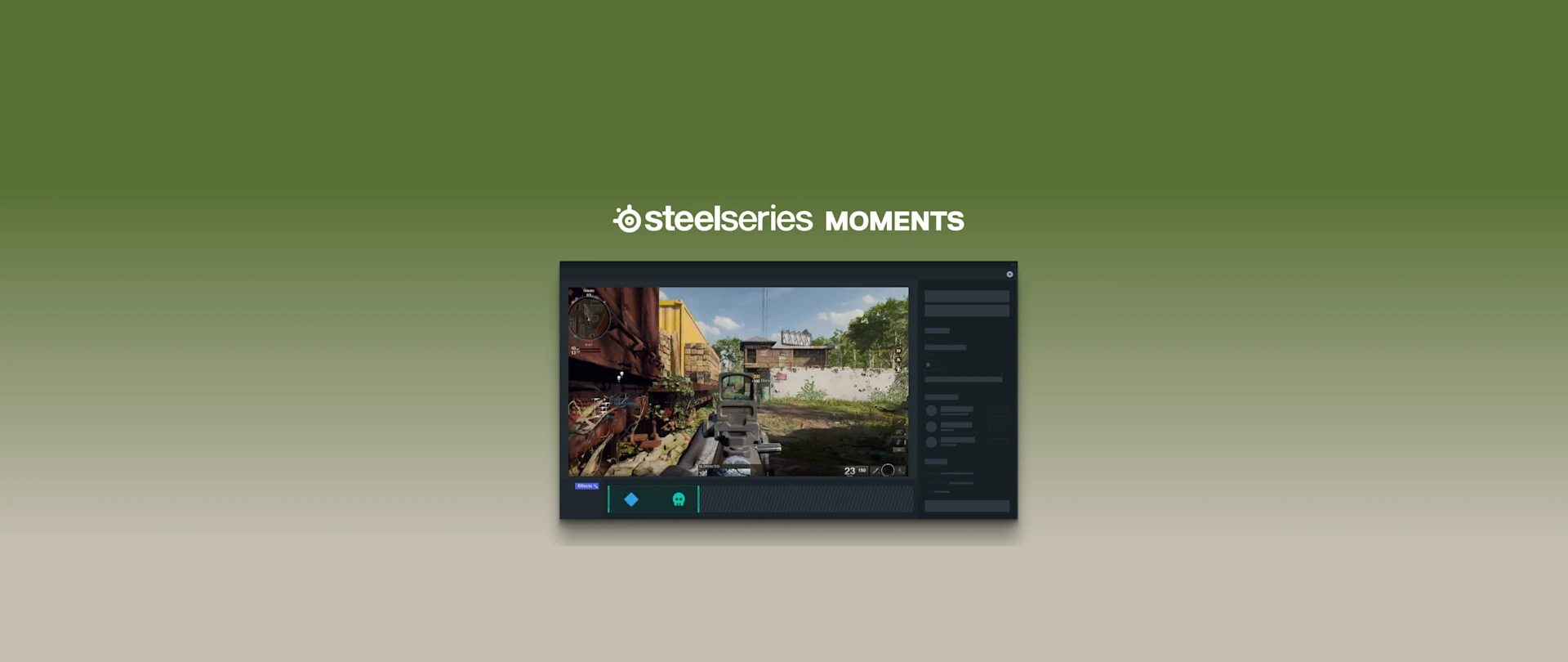
How to Capture Black Ops 6 Clips
Go viral with your insane killstreaks.
Save your best clips from Call of Duty: Black Ops 6 with Moments easily, and instantly share them with easy-to-use features!
A couple of Call of Duty: Black Ops 6 clips went viral with the new ability to interrogate players. Now you can create your own hilarious plays and high-skill maneuvers to share with friends! Our Moments software allows you to show off how well you mastered Omnimovement and how you handle hordes of zombies. Just download SteelSeries GG app (available for free) which includes Moments, an extremely convenient program that helps you quickly capture your best triumphs and epic fails with friends and online communities. Easily recrod your gameplay clips with a button press, edit them in app to highlight the best part, and share with a simple drag-and-drop interface.
A powerful feature within Moments is auto-clipping. Our advanced software recognizes specific instances in games and automatically takes a clip for you. You can still manually capture clips whenver you want, but Moments can automatically do it for you, and we've just expanded its functionality to include Black Ops 6, so you can start creating viral content.
Why is automatic clipping helpful?
Personally, I'm a big fan of the automatic clipping for one big reason: it's easy to forget to clip an awesome play after it happens. It's disappointing to finish an epic round and think, "I wish I recorded that." The Moments app has a distinct sound when it captures, so after it clips at least once, you might remember to do it manually next time (by default, Alt+S). Regardless, auto-clipping is a great way to save epic game moments and then easily share with friends later.
How to setup automatic clipping in Black Ops 6
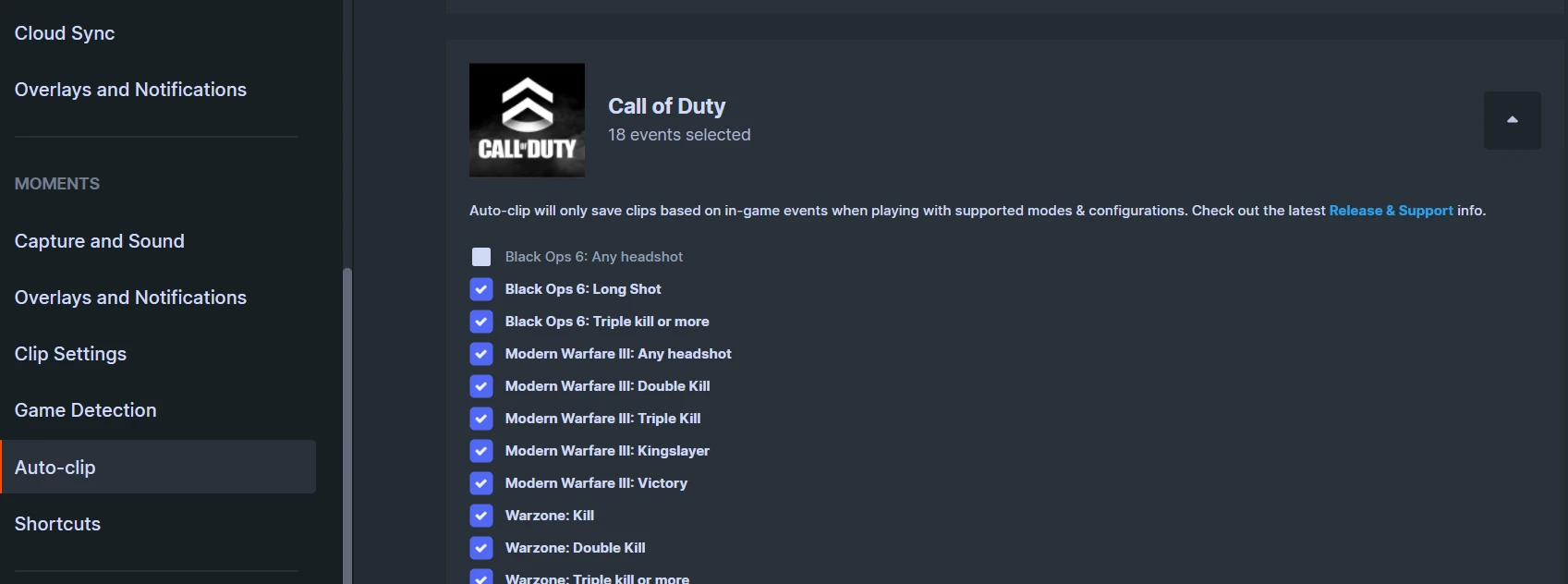
In the SteelSeries GG app, enter the Settings section and scroll down to the Moments section. Click on the Auto-clip tab to see this section. By default, this feature will already be active, but you can disable it entirely if you wish and tinker with individual games and their events.
Scroll down the list of games to see Call of Duty. The Black Ops 6 auto-clipping settings are nested there with the other versions. There, you will see the available conditions to trigger an auto-clip. You can toggle on/off any of them.
Black Ops 6: Any headshot
Black Ops 6: Long Shot
Black Ops 6: Triple kill or more
The rest of the triggers apply to other Call of Duty games.
Now, if Moments is active, it will automatically create a clip if any of those events occur in your game. It will follow the typical clip settings for length and quality, which you can also set in the Moments Settings section. The automated clips will also be labeled based on the event that triggered them in your catalogue.
Download Moments now, for free.
Don't forget to pick up an award-winning gaming headset to keep you dialed in your game.
Want to learn more about Moments?
Wordsmith at SteelSeries. Enthusiastic about Dota 2 and fighting games. A cat dad.